이전편에서 컨테이너부터 쿠버네티스까지 이론 개념들을 정리해보았다.
이번에는 실제로 AWS의 EKS를 이용해 쿠버네티스를 구축해보는 실습 과정을 정리해보겠다.
AWS에서는 쿠버네티스를 다음과 같이 정리하고 있다.
쿠버네티스는 컨테이너화된 워크로드와 서비스를 관리하기 위한 이식성이 있고, 확장가능한 오픈소스 플랫폼.
쿠버네티스의 궁극적 목표는 현재 상태(current state)가 원하는 상태(desired state)가 되도록 관리하는 것
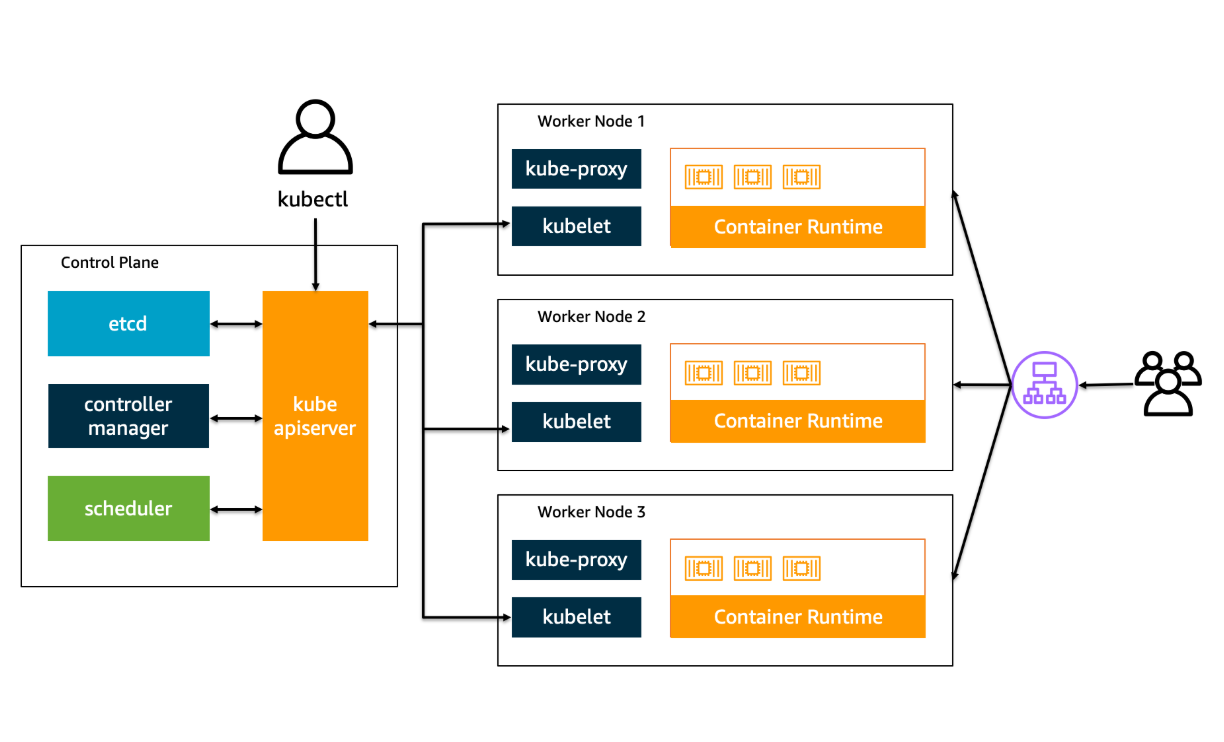
Control Plane (워커 노드와 클러스터 내 파드를 관리하고 제어하는 부분 (Master Node))
Data Plane (워커 노드들로 구성)
Amazon EKS
Amazon EKS는 쿠버네티스를 쉽게 실행할 수 있는 관리형 서비스로 쿠버네티스를 한 번에 만들어,
Control Plane 부분을 관리해주어 사용자는 pod만 관리하면 된다.
※ kubectl는 쿠버네티스 클러스터에 명령을 내리는 CLI이다.
※ Amazon EKS 클러스터를 배포하는 방식은 다양합니다. AWS 콘솔, CloudFormation, CDK, eksctl 및 Terraform 등
※ eksctl은 EKS 클러스터를 쉽게 생성 및 관리하는 CLI 툴, GO언어로 되어 있으며 CloudFormation 형태로 배포
0. 준비 : 콘솔 준비 + kubectl 설치 + eksctl 설치
# 1. 배포할 Amazon EKS 버전과 상응하는 kubectl를 설치
sudo curl -o /usr/local/bin/kubectl  \
   https://s3.us-west-2.amazonaws.com/amazon-eks/1.33.0/2025-05-01/bin/linux/amd64/kubectl

# 2. 실행 권한 주기
sudo chmod +x /usr/local/bin/kubectl

# 3. 최신의 kubectl이 설치되었는지 확인
kubectl version --client=true

# 출력되는 결과 값
Client Version: v1.33.0-eks-802817d
Kustomize Version: v5.6.0
# 1. eksctl 바이너리를 다운로드
curl --silent --location "https://github.com/weaveworks/eksctl/releases/latest/download/eksctl_$(uname -s)_amd64.tar.gz" | tar xz -C /tmp
# 2. 바이너리를 ~/bin으로 옮김.
sudo mv -v /tmp/eksctl /usr/local/bin
# 3. 설치 여부 확인
eksctl version
1. 도커 컨테이너 만들기 (컨테이너 만들어서 ECR에 push 해보기)
1-1. 컨테이너 이미지 만들기 (dockerfile + build + run)
# 1. root 폴더(/home/ec2-user-environment)로 이동
cd ~/environment/

# 2. 도커 파일 만들기
cat << EOF > Dockerfile
FROM nginx:latest
RUN  echo '<h1> test nginx web page </h1>'  >> index.html
RUN cp /index.html /usr/share/nginx/html
EOF

# 3. dockerfile을 빌드하여 docker image만들기(tag로 이름 설정, default lastest)
docker build -t {컨테이너 이미지명} .

# 4. 생성된 이미지 확인하기
docker images

# 5. docker run 명령어로 이미지를 컨테이너로 실행시키기.
docker run -p 8080:80 --name {컨테이너명} {컨테이너 이미지명}

# 6. docker ps로 실행중인 컨테이너 확인
docker ps

# 7. 해당 컨테이너의 로그를 출력
docker logs -f {컨테이너명}

# 8. docker stop을 통해 컨테이너 중지
docker stop

# 9. docker rm을 통해 컨테이너 삭제
docker rm {컨테이너명}

# 10. docker rmi를 통해 컨테이너 이미지 삭제
docker rmi test-image
1-2. Amazon ECR에 이미지 올리기 (ecr 이미지 레포지토리 생성 + docker login + build + tag + push )
# 1. 컨테이너라이징할 소스코드를 다운
git clone https://github.com/joozero/amazon-eks-flask.git

# 2. aws cli를 통해, 이미지 레포지토리를 생성한다.
aws ecr create-repository \
--repository-name {이미지 레포지토리명} \ # 이미지 레포지토리 명 설정
--image-scanning-configuration scanOnPush=true \ # 이미지 push할 대 보안 점검 자동 실행
--region ${AWS_REGION} # 생성할 레포지토리의 AWS 리젼 설정

# 3. 컨테이너 이미지를 레포에 push하기 위해, 인증 토큰 가져오고, 토큰을 docker login 명령어로 전달.
aws ecr get-login-password --region ${AWS_REGION} \
	| docker login --username AWS --password-stdin $ACCOUNT_ID.dkr.ecr.$AWS_REGION.amazonaws.com

# 4. 1에서 다운 받은 소스코드 위치에 들어가 도커 이미지를 빌드.
cd ~/environment/amazon-eks-flask
docker build -t demo-flask-backend .

# 5. 이미지 빌드 후 docker tag를 통해 해당 이미지가 특정 레포지토리에 push되도록 설정
docker tag demo-flask-backend:latest \
	$ACCOUNT_ID.dkr.ecr.$AWS_REGION.amazonaws.com/demo-flask-backend:latest

# 6. 이미지 레포지토리에 push
docker push $ACCOUNT_ID.dkr.ecr.$AWS_REGION.amazonaws.com/demo-flask-backend:latest
2. EKS 클러스터 생성 (yaml 생성 + EKS 클러스터 생성 및 배포 + 노드 확인)

# 1. EKS 클러스터용 yaml파일 만들기
cd ~/environment

cat << EOF > eks-demo-cluster.yaml   # yaml파일 생성, EOF까지의 내용을 파일로 쓰겠다
---
apiVersion: eksctl.io/v1alpha5 # eksctl의 설정 파일 버전
kind: ClusterConfig   # EKS 클러스터의 설정파일

metadata:
	name: eks-demo
    region: ${AWS_REGION}
    version: "1.33"   # 쿠버네티스 버전

vpc: # VCP 설정
	cidr: "10.0.0.0/16"
    nat:
    	gateway: HighlyAvailable # NAT Gateway를 AZ마다 생성하겠다

managedNodeGroups:
  - name: node-group
    instanceType: m5.large # EC2 인스턴스 타입
    desiredCapacity: 3 # 노드 개수
    volumeSize: 20 # 루트 디스크 20GB
    privateNetworking: true # 노드를 Private Subnet에 배치
    iam:
      withAddonPolicies:
        imageBuilder: true
        awsLoadBalancerController: true
        cloudWatch: true
        autoScaler: true
        ebs: true

cloudWatch:
  clusterLogging:
    enableTypes: ["*"] # 모든 Control Plane 로그 활성화
EOF


# 2. yaml파일 기반으로 EKS 클러스터 배포하기
eksctl create cluster -f eks-demo-cluster.yaml

# 3. 노드의 배포 확인
kubectl get nodes
3. 인그레스 컨트롤러 만들기 (외부 요청을 service와 연결)
3-1. AWS Load Balancer 컨트롤러 만들기
외부 트래픽을 쿠버네티스 서비스로 제대로, 자동으로 연결하기 위해 ALB Controller 및 Ingress Controller를 만들어야한다.
Inogress란 gateway처럼 외부 요청을 내부 Service로 라우팅 하는 규칙을 말한다.
AWS Load Balancer 컨트롤러를 만드는 이유는 외부의 요청을 받아야하기 때문이다.
Inogress로는 외부의 요청을 받지 못한다, 즉 네트워크 변환, 패킷 수신, 트래픽을 할 수 없다.
그래서 Load Balancer를 앞에 둠으로써 트래픽을 받아주고 Inogress 규칙을 참고해 분산처리 및 라우팅하는 것이다.
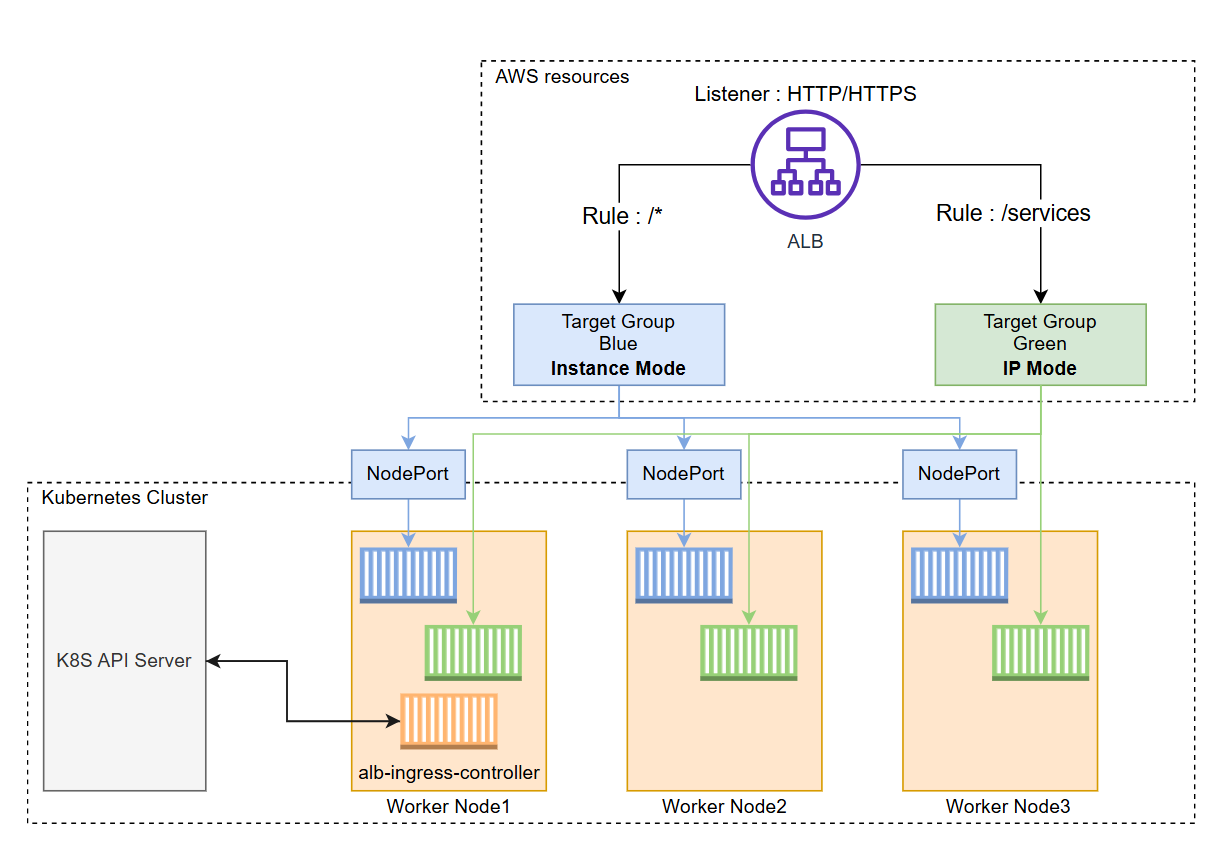
※ OIDC Identity Provider = 이 쿠버네티스 ServiceAccount는 신뢰해도 되는 AWS 사용자임을 알려주는 장치
※ 1. ALB Controller용 IAM Policy 생성
※ 2. ServiceAccount와 IAM Role 연결
※ 3. cert-manager라는 TLS 인증서를 클러스터에 추가
※ 4. AWS Load Balancer Controller yaml파일 다운로드 + yaml파일에서 ServiceAccount 삭제해서 이전에 만든 SA적용
※ 5. 클러스터 이름 수정 (AWS Load Balancer Controller 의 tag를 붙이는 것)
※ 6. AWS Load Balancer Controller 배포
※ 7. IngressClass yaml 파일 다운로드 및 배포 + 배포 시 load balancer와 연결됨.
IAM role을 ec2 노드에 넣는 방식은 옛날 방식이며 보안에 취약 -> pod단위로 IAM role을 사용하게 함.
# 1. AWS Load Balancer 컨트롤러를 배포하기 전, IAM OIDC Identity Provider 생성
# 쿠버네티스가 직접 관리하는 사용자 계청을 의미하는 service account에 IAM role을 사용하기 위해
eksctl utils associate-iam-oidc-provider \
    --region ${AWS_REGION} \
    --cluster eks-demo \
    --approve

# 1-1. 클러스터의 oidc 자격 증명 공급자 확인
aws eks describe-cluster --name eks-demo --query "cluster.identity.oidc.issuer" --output text

# 2. AWS Load Balancer Controller에 부여할 IAM Policy를 생성
curl -O https://raw.githubusercontent.com/kubernetes-sigs/aws-load-balancer-controller/v2.13.3/docs/install/iam_policy.json

aws iam create-policy \
    --policy-name AWSLoadBalancerControllerIAMPolicy \
    --policy-document file://iam_policy.json


# 3. AWS Load Balancer Controller를 위한 ServiceAccount를 생성
eksctl create iamserviceaccount \
    --cluster eks-demo \
    --namespace kube-system \
    --name aws-load-balancer-controller \
    --attach-policy-arn arn:aws:iam::$ACCOUNT_ID:policy/AWSLoadBalancerControllerIAMPolicy \
    --override-existing-serviceaccounts \
    --region ${AWS_REGION} \
    --approve

# 4. cert-manager라는 TLS 인증서를 클러스터에 추가
kubectl apply --validate=false -f https://github.com/cert-manager/cert-manager/releases/download/v1.12.3/cert-manager.yaml

# 5. Load balancer controller yaml 파일을 다운로드
curl -Lo v2_13_3_full.yaml https://github.com/kubernetes-sigs/aws-load-balancer-controller/releases/download/v2.13.3/v2_13_3_full.yaml

# 6. 메니페스트 파일에 있는 ServiceAccount 섹션을 제거
sed -i.bak -e '730,738d' ./v2_13_3_full.yaml

# 7. Deployment 섹션의 my-cluster를 현재 eks 실습에 사용되는 클러스터 이름으로 변경
sed -i.bak -e 's|your-cluster-name|eks-demo|' ./v2_13_3_full.yaml

# 8. AWS Load Balancer controller 파일을 배포
kubectl apply -f v2_13_3_full.yaml

# 9. IngressClass 및 IngressClassParams 매니페스트를 다운로드 + 클러스터에 매니페스트를 적용
curl -Lo v2_13_3_ingclass.yaml https://github.com/kubernetes-sigs/aws-load-balancer-controller/releases/download/v2.13.3/v2_13_3_ingclass.yaml
kubectl apply -f v2_13_3_ingclass.yaml

# 10.배포가 성공적으로 되고 컨트롤러가 실행되는지 아래의 명령어를 통해 확인
kubectl get deployment -n kube-system aws-load-balancer-controller
kubectl get sa aws-load-balancer-controller -n kube-system -o yaml
kubectl logs -n kube-system $(kubectl get po -n kube-system | egrep -o "aws-load-balancer[a-zA-Z0-9-]+")
4. 서비스 배포하기
4-1. 첫번째 벡엔드 배포
# 1. deploy manifest 생성
cd ~/environment/manifests/

cat <<EOF> flask-deployment.yaml
---
apiVersion: apps/v1
kind: Deployment
metadata:
  name: demo-flask-backend
  namespace: default
spec:
  replicas: 3
  selector:
    matchLabels:
      app: demo-flask-backend
  template:
    metadata:
      labels:
        app: demo-flask-backend
    spec:
      containers:
        - name: demo-flask-backend
          image: $ACCOUNT_ID.dkr.ecr.$AWS_REGION.amazonaws.com/demo-flask-backend:latest
          imagePullPolicy: Always
          ports:
            - containerPort: 8080
EOF

# 2. service manifest 파일을 생성
cat <<EOF> flask-service.yaml
---
apiVersion: v1
kind: Service
metadata:
  name: demo-flask-backend
  annotations:
    alb.ingress.kubernetes.io/healthcheck-path: "/contents/aws"
spec:
  selector:
    app: demo-flask-backend
  type: NodePort
  ports:
    - port: 8080 # 서비스가 생성할 포트
      targetPort: 8080 # 서비스가 접근할 pod의 포트
      protocol: TCP
EOF


# 3. ingress manifest 파일을 생성
cat <<EOF> flask-ingress.yaml
---
apiVersion: networking.k8s.io/v1
kind: Ingress
metadata:
    name: "flask-backend-ingress"
    namespace: default
    annotations:
      alb.ingress.kubernetes.io/scheme: internet-facing
      alb.ingress.kubernetes.io/target-type: ip
      alb.ingress.kubernetes.io/group.name: eks-demo-group
      alb.ingress.kubernetes.io/group.order: '1'
spec:
    ingressClassName: alb
    rules:
    - http:
        paths:
          - path: /contents
            pathType: Prefix
            backend:
              service:
                name: "demo-flask-backend"
                port:
                  number: 8080
EOF


# 4.배포, Ingress를 생성하면 AWS Application Load Balancer(ALB)가 프로비저닝됨.
kubectl apply -f flask-deployment.yaml
kubectl apply -f flask-service.yaml
kubectl apply -f flask-ingress.yaml
4-2. 두번째 벡엔드 배포
# 1. deploy manifest 생성
cd ~/environment/manifests/

cat <<EOF> nodejs-deployment.yaml
---
apiVersion: apps/v1
kind: Deployment
metadata:
  name: demo-nodejs-backend
  namespace: default
spec:
  replicas: 3
  selector:
    matchLabels:
      app: demo-nodejs-backend
  template:
    metadata:
      labels:
        app: demo-nodejs-backend
    spec:
      containers:
        - name: demo-nodejs-backend
          image: public.ecr.aws/y7c9e1d2/joozero-repo:latest
          imagePullPolicy: Always
          ports:
            - containerPort: 3000
EOF

# 2. service manifest 파일을 생성
cat <<EOF> nodejs-service.yaml
---
apiVersion: v1
kind: Service
metadata:
  name: demo-nodejs-backend
  annotations:
    alb.ingress.kubernetes.io/healthcheck-path: "/services/all"
spec:
  selector:
    app: demo-nodejs-backend
  type: NodePort
  ports:
    - port: 8080
      targetPort: 3000
      protocol: TCP
EOF


# 3. ingress manifest 파일을 생성
cat <<EOF> nodejs-ingress.yaml
---
apiVersion: networking.k8s.io/v1
kind: Ingress
metadata:
  name: "nodejs-backend-ingress"
  namespace: default
  annotations:
    alb.ingress.kubernetes.io/scheme: internet-facing
    alb.ingress.kubernetes.io/target-type: ip
    alb.ingress.kubernetes.io/group.name: eks-demo-group
    alb.ingress.kubernetes.io/group.order: '2'
spec:
  ingressClassName: alb
  rules:
  - http:
        paths:
          - path: /services
            pathType: Prefix
            backend:
              service:
                name: "demo-nodejs-backend"
                port:
                  number: 8080
EOF


# 4.배포, Ingress를 생성하면 AWS Application Load Balancer(ALB)가 프로비저닝됨.
kubectl apply -f nodejs-deployment.yaml
kubectl apply -f nodejs-service.yaml
kubectl apply -f nodejs-ingress.yaml
4-3. 프론트엔드 배포
# 1. 컨테이너라이징할 소스코드 다운로드
cd /home/ec2-user/environment
git clone https://github.com/joozero/amazon-eks-frontend.git

# 2. 이미지 리포지토리를 생성
aws ecr create-repository \
--repository-name demo-frontend \
--image-scanning-configuration scanOnPush=true \
--region ${AWS_REGION}

# 3.
cd /home/ec2-user/environment/amazon-eks-frontend
npm install
npm run build

# 4. 이미지 build + tag 설정 + push
docker build -t demo-frontend .
docker tag demo-frontend:latest $ACCOUNT_ID.dkr.ecr.$AWS_REGION.amazonaws.com/demo-frontend:latest
docker push $ACCOUNT_ID.dkr.ecr.$AWS_REGION.amazonaws.com/demo-frontend:latest

# 5. deployment yaml파일 생성
cd /home/ec2-user/environment/manifests

cat <<EOF> frontend-deployment.yaml
---
apiVersion: apps/v1
kind: Deployment
metadata:
  name: demo-frontend
  namespace: default
spec:
  replicas: 3
  selector:
    matchLabels:
      app: demo-frontend
  template:
    metadata:
      labels:
        app: demo-frontend
    spec:
      containers:
        - name: demo-frontend
          image: $ACCOUNT_ID.dkr.ecr.$AWS_REGION.amazonaws.com/demo-frontend:latest
          imagePullPolicy: Always
          ports:
            - containerPort: 80
EOF


# 6. service.yaml 파일 생성
cat <<EOF> frontend-service.yaml
---
apiVersion: v1
kind: Service
metadata:
  name: demo-frontend
  annotations:
    alb.ingress.kubernetes.io/healthcheck-path: "/"
spec:
  selector:
    app: demo-frontend
  type: NodePort
  ports:
    - protocol: TCP
      port: 80
      targetPort: 80
EOF


# 7. ingress.yaml파일 생성
cat <<EOF> frontend-ingress.yaml
---
apiVersion: networking.k8s.io/v1
kind: Ingress
metadata:
  name: "frontend-ingress"
  namespace: default
  annotations:
    alb.ingress.kubernetes.io/scheme: internet-facing
    alb.ingress.kubernetes.io/target-type: ip
    alb.ingress.kubernetes.io/group.name: eks-demo-group
    alb.ingress.kubernetes.io/group.order: '3'
spec:
  ingressClassName: alb
  rules:
    - http:
        paths:
          - path: /
            pathType: Prefix
            backend:
              service:
                name: "demo-frontend"
                port:
                  number: 80
EOF


# 8. 배포.
kubectl apply -f frontend-deployment.yaml
kubectl apply -f frontend-service.yaml
kubectl apply -f frontend-ingress.yaml
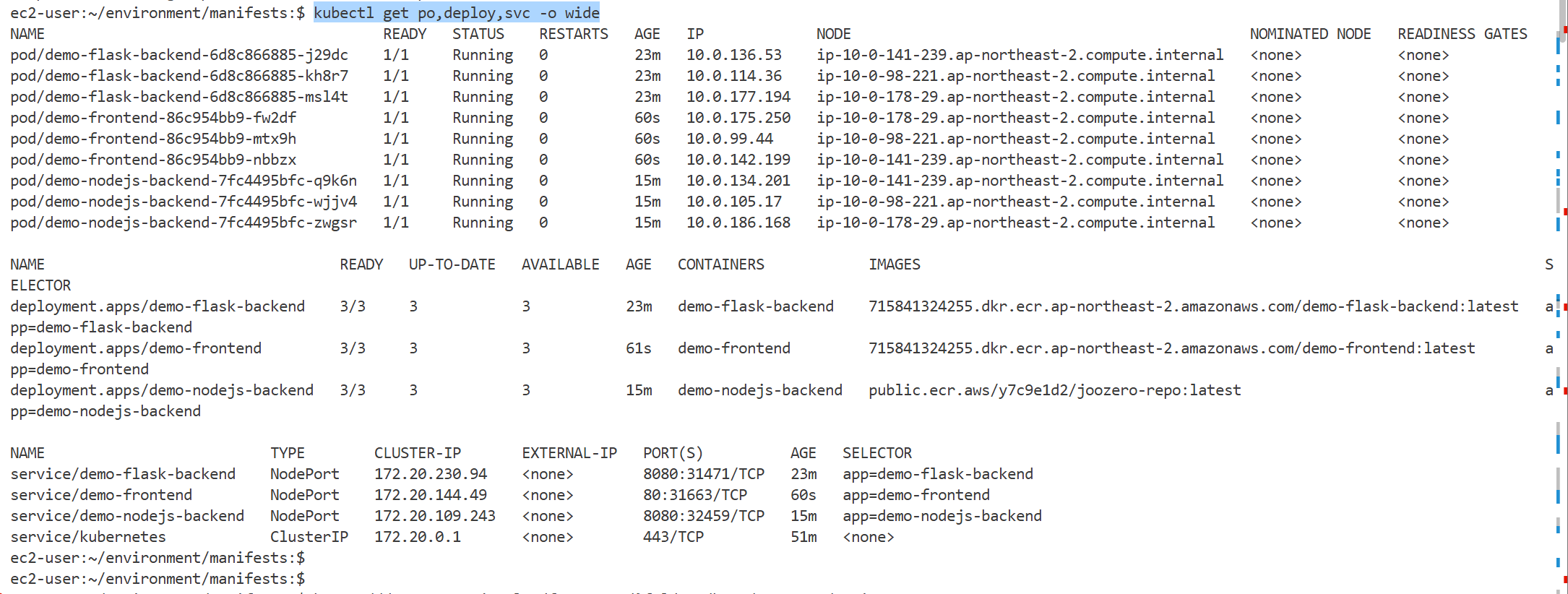
pod는 서버별로 3개씩 구성되어 있고
service는 각 서버별로 존재해 3개 있는 모습을 볼 수 있다.
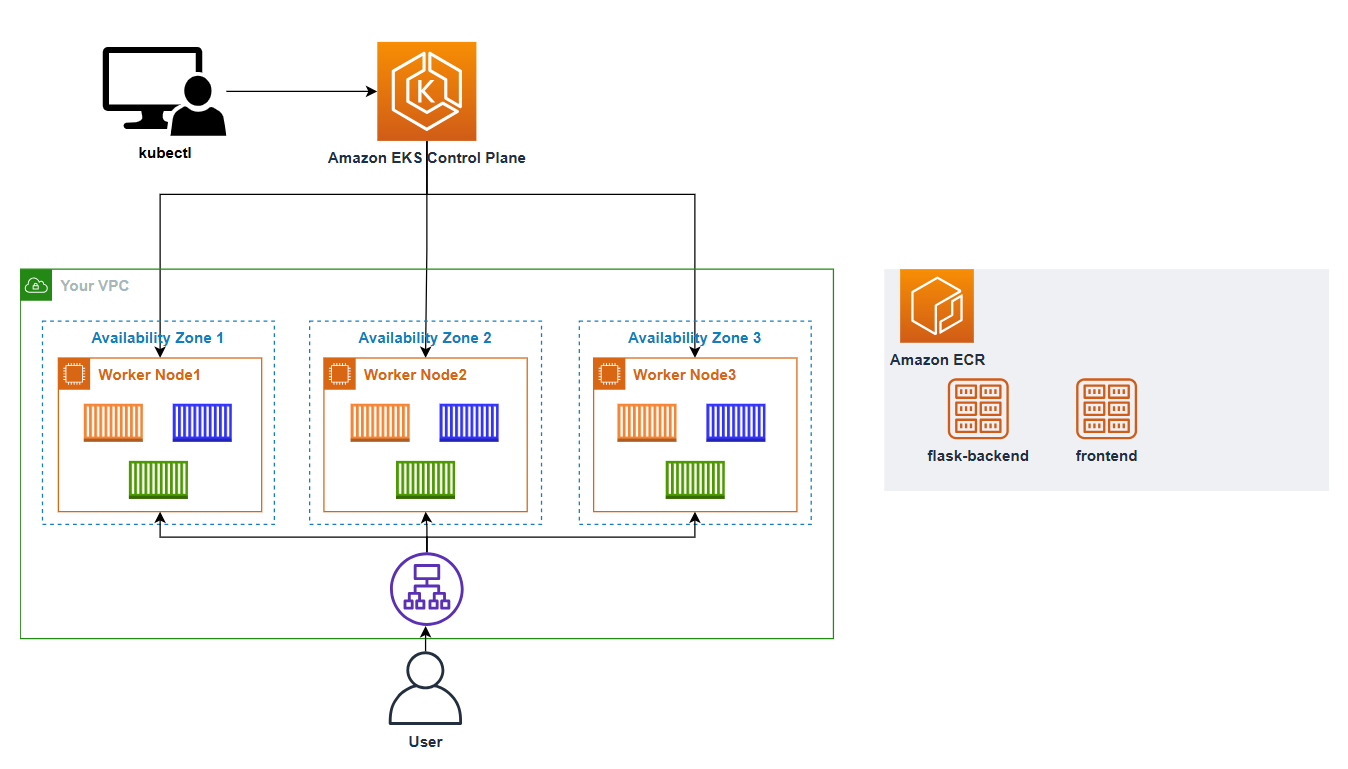
프로젝트에 참여할 때도 Docker 또는 ECR, EKS 를 사용했었지만 실제 배포된 환경이나 쿠버네티스 구축이 어떻게 이루어져 있는지 몰랐었다. 그리고 알려고 하지 않았던것 같다. 어렵다는 이유로 미뤄왔었는데 이제는 제대로 공부해보려고한다.
이번 2일차 실습을 통해 쿠버네티스가 뭔지 EKS가 뭔지 어떻게 구축하는지를 배울 수 있었다.
'Cloud' 카테고리의 다른 글
| [Cloud] - AI Cloud 트랙 2일차 - 쿠버네티스(Kubernetes) 이론편 (0) | 2025.12.23 |
|---|---|
| [Cloud] AI Cloud 트랙 1일차 - overview (1) | 2025.12.23 |